How to Keep Your Laptop From Overheating
 Lena Anderson
I remember sitting in a high-pressure finance meeting in Midtown, trying to finalize a quarterly budget, when my laptop suddenly started sounding like a jet engine preparing for takeoff. The heat radiating from the keyboard was so intense it felt like I was working on a stovetop, and my heart started racing right along with the cooling fan. It’s that frantic, stressful moment where you realize your tech is about to give up on you right when you need it most. We’ve all been there, desperately searching for how to keep your laptop cool while our productivity—and our zen—goes completely out the window.
I’m not here to sell you on some overpriced, neon-lit cooling pad that promises miracles but just adds clutter to your desk. Instead, I want to share the practical, no-nonsense strategies I’ve learned from years of navigating both high-stakes corporate environments and a more mindful, balanced lifestyle. I promise to give you straightforward, actionable advice that actually works, helping you protect your hardware and your peace of mind. Let's get your tech back to a temperature that allows you to focus on what really matters.
Table of Contents
Recognizing the Signs of Laptop Overheating Before Burnout

We’ve all been there: you’re deep in a flow state, crushing a project or finally tackling those spreadsheets, when suddenly your computer starts acting like it’s running a marathon in the middle of July. It’s not just a minor annoyance; it’s your tech’s way of screaming for a breather. One of the most obvious signs of laptop overheating is when that little internal fan starts sounding like a jet engine taking off from LaGuardia. If you notice your device getting uncomfortably warm against your thighs or if the system starts lagging significantly, pay attention. That lag is often a sign of preventing laptop thermal throttling, where your computer intentionally slows itself down to avoid permanent damage.
It’s a lot like when we push ourselves too hard in our careers without a mental reset—eventually, we just crash. If your cursor is stuttering or your applications are freezing, your hardware is hitting a wall. Don't wait for a total system shutdown to take action; recognizing these early warning signals is the first step toward improving laptop airflow and protecting your most important digital tool.
Improving Laptop Airflow for a More Peaceful Workflow
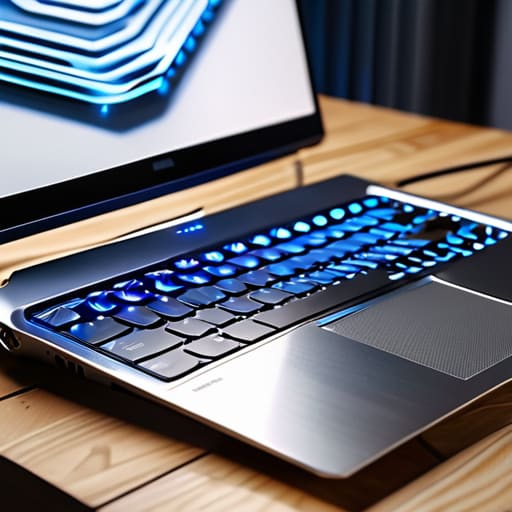
Think of your laptop like your own body during a high-stress work week—if you don't let it breathe, it’s going to crash. One of the simplest ways to start improving laptop airflow is to ditch the habit of working from your bed or a plush sofa. Soft surfaces act like a heavy blanket, suffocating those tiny vents and trapping heat right against the chassis. Instead, try to keep your tech on a flat, hard surface like a desk. If you’re someone who loves working from cozy nooks, I highly recommend investing in some of the best laptop cooling pads on the market. They act like a little personal assistant for your hardware, providing a steady stream of fresh air so your machine doesn't have to work overtime just to stay functional.
5 Ways to Chill Out Your Tech (Without Losing Your Zen)
- Watch your surfaces! Just like how I wouldn't recommend doing a headstand on a pile of laundry, don't use your laptop on a soft duvet or a plush rug. These fabrics act like a cozy blanket that suffocates your vents. Stick to a hard, flat surface—like a desk or a tray—to let your laptop breathe easy.
- Give it a little digital detox with a cleaning spree. Dust is the ultimate productivity killer; it settles in your fans and acts like a thermal barrier. Grab a can of compressed air and give those vents a gentle puff once in a while to keep the airflow flowing smoothly.
- Mind your background tabs! Running fifty Chrome tabs and three heavy apps at once is the digital equivalent of trying to run a marathon while carrying a heavy backpack. Close out what you don't need to lower the CPU strain and keep that temperature down.
- Invest in a cooling pad if you're a heavy lifter. If your work involves intense spreadsheets or video editing, a cooling pad is like a little spa day for your machine. It provides extra elevation and active airflow, helping your laptop stay calm under pressure.
- Check your power settings for a more mindful approach. You don't always need to be in "High Performance" mode. Switching to a more balanced power plan can prevent your processor from running at max speed unnecessarily, saving both your battery life and your sanity.
Finding Your Tech's Zen: Quick Wins for a Cooler Laptop
Listen to your hardware like you listen to your body; if your laptop is running hot or acting sluggish, it's a sign it needs a little "breathing room" and a break from the heavy lifting.
Create a flow that works—keep your laptop on a hard, flat surface to ensure airflow stays unobstructed, much like how we need a clear space to practice our yoga.
Don't let a cluttered digital life overheat your system; closing those endless, unnecessary tabs is a great way to reduce the strain on your processor and your own mental bandwidth.
Finding Your Tech's Zen
"Think of your laptop like your own energy levels: when things start to overheat and the fans go wild, it’s not a sign to push harder, it’s a signal to pause, create some breathing room, and find your cool again."
Lena Anderson
Finding Your Tech's Zen
At the end of the day, keeping your laptop cool is about more than just preventing a hardware meltdown; it’s about creating an environment where you can actually focus. We’ve talked about spotting those early warning signs of overheating—like that frantic fan noise—and the importance of ensuring your device has enough breathing room to function properly. Whether you’re investing in a cooling pad or just making sure you aren't working from a soft, heat-trapping duvet, these small adjustments make a massive difference. Remember, a device that runs smoothly is a tool that supports your ambition rather than stalling your momentum with constant freezes and lag.
As you wrap up your workday, I want you to take a moment to check in with yourself, too. Just like your laptop, you can’t run at maximum capacity indefinitely without a little bit of cooling down time. Don't let the heat of a high-pressure deadline lead to total burnout in both your tech and your soul. Take a deep breath, step away from the screen, and find your own version of a "cool down" period through a quick stretch or a moment of mindfulness. You deserve a career that is as sustainable and balanced as it is successful. Keep breathing, keep growing, and stay cool!
Frequently Asked Questions
Is it actually worth investing in one of those fancy cooling pads, or am I just throwing money away?
Think of a cooling pad like a little wellness retreat for your laptop. If you’re a power user—running heavy software or crunching massive spreadsheets all day—it’s a total game-changer for preventing thermal throttling. But, if you’re mostly just answering emails and browsing, it might be overkill. Don't break your budget unnecessarily; if you've already optimized your airflow, you might be better off investing that cash in a nice yoga mat instead!
Can using my laptop while it's plugged in all day actually make it run hotter?
It’s a great question, and honestly, it’s a bit like that "always-on" work culture we’re all trying to escape! While being plugged in provides steady power, it can definitely lead to extra heat. Constant charging keeps your battery in a high-energy state, and if you're running heavy tasks simultaneously, your laptop is working double duty. Think of it as a marathon runner who never gets to sit down—eventually, things are going to get a little overheated!
How do I know if the overheating is just a temporary glitch or if my hardware is actually reaching its breaking point?
Think of it like your own burnout: there’s a difference between a stressful week and total exhaustion. If a quick reboot or clearing your tabs fixes the heat, it’s likely just a temporary "stress spike" from heavy multitasking. But if your fans are screaming constantly, your laptop feels hot to the touch even when idling, or you’re seeing the dreaded Blue Screen of Death? That’s your hardware crying for help. Don't ignore those red flags!